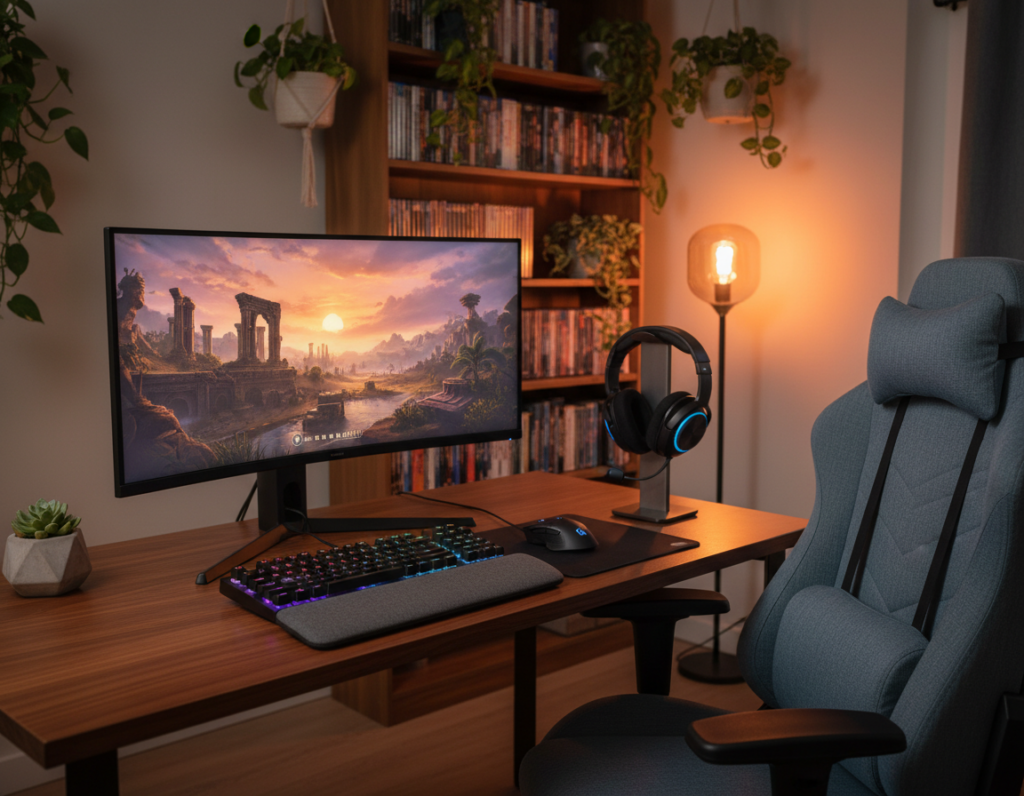
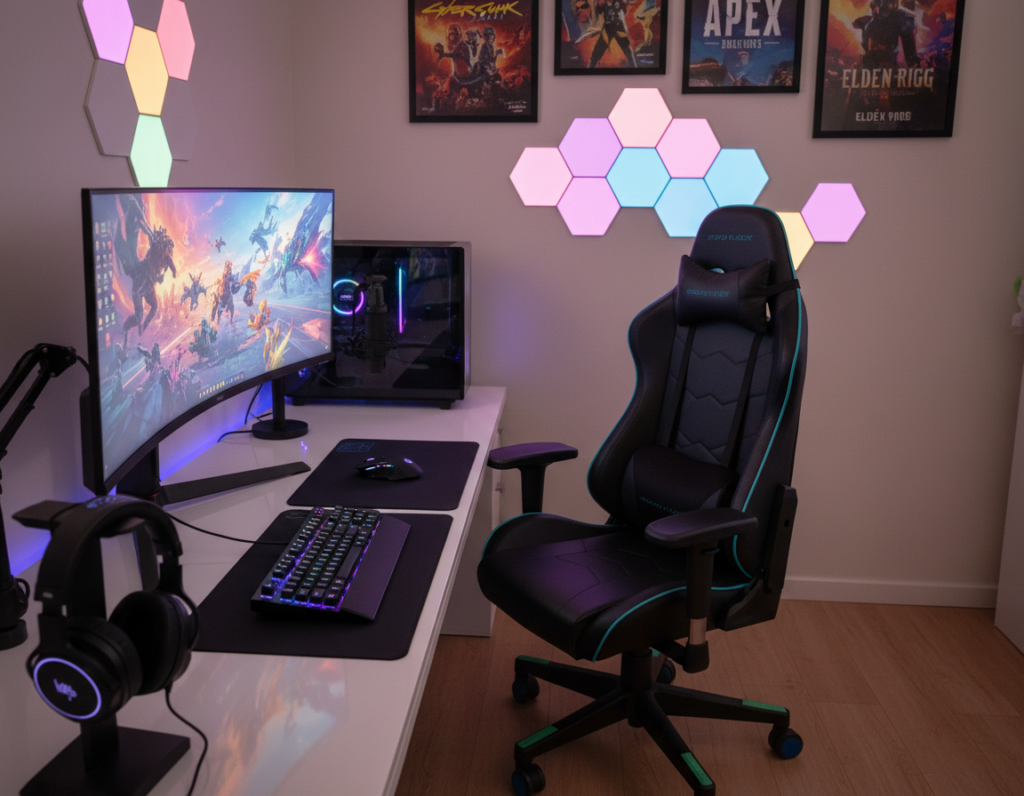
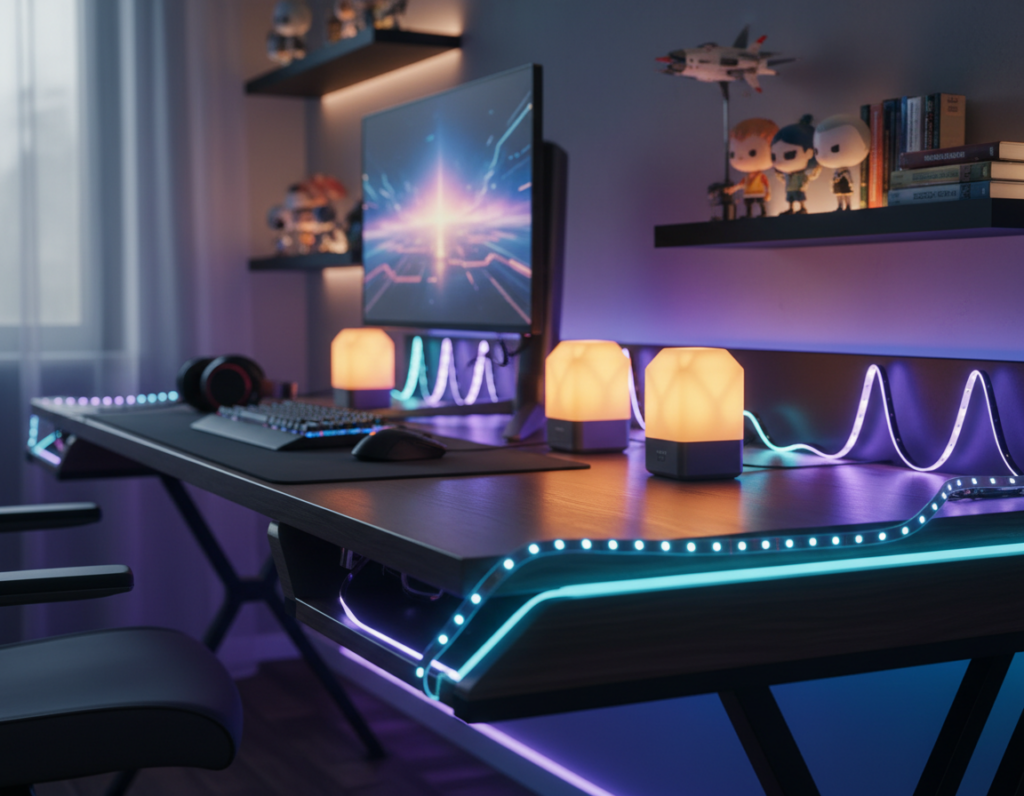
Building a high-performance gaming setup in a tight area starts with a clear plan. They should measure walls, doorways, and clear floor space before picking furniture. This avoids wasted time and a poor layout.
Size and design matter. The right desk anchors the setup and keeps gear stable during long sessions. It also defines cable routing, lighting, and storage choices that reduce clutter.
A useful rule is to allow at least 30 inches of clear floor space in front and 24–28 inches of leg clearance under the surface. They should favor sturdy legs or cross-bracing and aim for a 100+ pound capacity when possible.
To explore common dimensions and layout tips, readers can visit a detailed guide on compact setups at ultimate guide to compact setups. Smart planning prevents the frustration of buying gear that does not fit and keeps focus on performance.
Assessing Your Available Gaming Space
Start by sketching a simple floor plan to see where gear, chairs, and power outlets will actually fit. This quick map saves time and prevents buying a desk that crowds the room.
Floor Plan Considerations
Measure walls, doors, and walkways. Mark where cables and vents run. Measure existing furniture so the new desk does not block traffic or a door.
If the area doubles as an office, check how placement affects daily workflow. A desk against a wall may suit focused work while an L-shape in a corner gives more surface without stealing the center of the room.
Identifying Nooks
Many gamers convert an underused nook into a dedicated spot. Identifying tight spaces lets them tuck equipment away and keep the rest of the rooms open.
- Map outlet locations and light sources.
- Measure clearances to keep walkways free.
- Consider corners to expand usable surface area.
For layout examples and compact planning tips, see the compact setups guide.
Finding the Best Desk for Small Gaming Room
Choosing the right surface means matching usable area to the limits of your floor plan. They must weigh surface area against passage and chair movement in a tight home office.
The SEVEN WARRIOR Gaming Desk earns notice as a compact option that still adds a monitor stand and tidy cable routing. It fits near walls without eating valuable walking space.
The ODK 40-Inch Small L Shaped Gaming Desk works well in a corner. It expands usable top area while keeping the center of the room open. This design helps when multiple peripherals share the surface.
“A well-designed workspace keeps focus on play and productivity rather than furniture limits.”
Key features to check:
- Built-in storage to keep the setup organized.
- Headphone hooks or charging ports to reduce clutter.
- Sturdy legs and a raised monitor shelf to save surface area.
Tip: Pick a desk small enough to leave room for movement and extras, and verify how the design supports the intended gaming setup and daily experience.
Measuring Width and Depth for Compact Setups
Measure the full wall span and the available passage to pick a width that balances gear and circulation. Accurate measurements prevent buying a surface that overwhelms the space or leaves too little room for a chair.
Ideal Width Ranges
Aim for 60 inches or less when the area is limited. Sixty inches is the sweet spot in many small layouts because it fits a single or dual monitor configuration without dominating a room.
- A width of 60 inches or under keeps walking space open and fits most setups.
- Measure twice across wall-to-wall distance before ordering any desks.
- Dual monitor users should confirm the total screen width so they do not reach across the desktop.
Optimal Depth for Ergonomics
Depth matters as much as width. A range of 23 to 27 inches lets users push the monitor back to a comfortable viewing distance.
- This depth gives room for a monitor, keyboard, and mouse while protecting wrist and arm posture.
- Combine the right height with proper depth to reduce strain during long gaming sessions or office work.
- Plan surface area to allow mouse movement and a natural typing position.
Evaluating Load Capacity and Build Quality
Confirming a surface can hold your entire rig prevents surprises and protects expensive components. Buyers should total the weight of the monitor(s), PC tower, and peripherals before shopping.
Choose a desk with a rated capacity at least 25% higher than that total. This safety margin reduces stress on joints and legs and prolongs lifespan.
Look for solid materials like steel or carbon fiber when selecting desks for a durable home office setup. Reinforced frames and cross-bracing add rigidity if a user mounts heavy monitor arms.
- Check manufacturer specs for maximum load and recommended distribution.
- Prefer units with cable trays, reinforced edges, or built-in storage to boost stability.
- If using a standing desk, confirm the motor and actuator can lift the full weight at any height.
Good build quality delivers long-term confidence. They should favor reputable brands and verify warranties so the setup stays safe during intense use.
Benefits of L-Shaped Desk Designs
An L-shaped layout turns wasted corner space into a dual-purpose work and play area. This design adds usable surface while keeping circulation clear.
Corner Optimization
Corner placement maximizes a tight footprint by tucking the longer leg along two walls. It frees central floor space and creates a natural workflow.
- It provides a secondary surface that suits a home office or extra gaming gear without extra furniture.
- The L shape lets users keep the monitor and keyboard on one side while using the other for storage or a printer.
- Many find the added surface area improves arm support during long sessions, increasing comfort and control.
- Proper placement in a corner makes the room feel more organized and helps separate work tasks from play.
Practical tip: choose an L-shaped unit with cable routing and a reinforced corner brace to protect equipment and keep the setup stable.
Advantages of Compact Standing Desks
A compact sit-stand surface lets users change posture without sacrificing usable top area. This choice reduces continuous sitting and helps cut fatigue during long play or work sessions.
Dual-motor units give smoother, more stable height adjustments and lower vibration when users shift positions. That steady motion protects mounts and monitors and improves the overall experience.
Smaller adjustable units fit tighter spaces and can expand how a home office is used. Many include built-in storage and cable routing to keep the setup tidy and efficient.
- Compact standing options let gamers move between sit and stand to sustain focus.
- Research links standing periods to less fatigue and better posture during marathon sessions.
- Look for dual motors, solid height range, and storage features that match the intended design.
Bottom line: a low-footprint standing solution is a smart option when space matters. It supports health, keeps gear organized, and upgrades the gaming setup without crowding the room.
Creating Visual Openness with Glass Surfaces
Using tempered glass as the main desktop creates an airy, uncluttered look in limited spaces. A transparent top lets light travel and makes the overall space feel larger.
Because you can see the floor through the glass, a gaming setup looks less heavy and more integrated into the room. This effect reduces visual clutter and improves perceived circulation.
Practical care: always use a full-surface mousepad on a glass surface. It prevents tracking issues and shields the finish from scratches during intense sessions.
“A clear tabletop blends gear into the background while keeping a sleek, modern aesthetic.”
- Visual openness: glass tops make tight layouts feel more inviting.
- Protection: tempered glass is durable, but a large mousepad protects daily wear.
- Style: many gamers pair glass with RGB to enhance the clean design.
- Placement: position the monitor to keep sightlines uncluttered and maintain ergonomic height.
Ensuring Stability During Intense Gameplay
When every flick matters, a solid work surface keeps aim steady and distractions low.
Stability is non-negotiable for gamers. A wobbly desk causes monitor shake and can ruin aim during tense moments. A rigid platform helps maintain consistent performance and focus.
Choose materials and capacity that exceed equipment weight. Look for reinforced steel frames and a rated load that outstrips the total weight of monitor, PC, and peripherals.
- Tighten loose screws and brackets when the surface trembles after a quick mouse flick.
- Test stability by applying lateral pressure to the top and checking for vibration.
- Level the feet to stop rocking on uneven floors.
- Prefer models with cross-bracing or a solid apron to reduce bounce.
“A stable desk gives players the steady foundation needed to focus on skill, not equipment.”
In short: prioritize a sturdy desk and check specs before buying. Solid desks protect gear and keep gamers competitive over the long term.
Ergonomic Principles for Marathon Sessions
Long sessions demand a setup that supports natural posture and reduces strain. Applying simple ergonomic rules helps prevent back, neck, and wrist pain during extended play.
Chair Height Alignment
Adjust the chair so feet rest flat and knees form about a 90-degree angle. This aligns hips and reduces lower back stress.
Ensure lumbar support if the space doubles as a home office. A well-set chair protects the spine during long hours.
Monitor Eye Level
Place the top of the monitor at or just below eye level per CCOHS guidance. This prevents neck tilt and keeps sightlines neutral.
Many gamers use a monitor arm to set exact height and distance. That arm also frees surface area and improves cable management.
Wrist Positioning
Keep keyboard and mouse at a height that lets elbows sit near 90 degrees. This maintains a neutral wrist position and lowers injury risk.
Test the configuration briefly and tweak chair height or monitor placement until arms and wrists feel relaxed. Good ergonomic design improves focus and performance during long gaming setups.
“OSHA recommends a neutral working posture to reduce repetitive strain.”
Implementing the Sit-Stand Rhythm
A steady rhythm of sitting, standing, and moving keeps energy levels higher than standing all day. This approach beats long static standing and lowers the chance of lower-limb fatigue and back discomfort.
The 20-8-2 rule is simple and practical: sit for 20 minutes, stand for 8, then move for 2. Gamers and office users in a tight space can follow this cycle to maintain focus and reduce strain.
Start slow. New users should try shorter standing intervals and build endurance over weeks. A quality standing desk with easy height adjustment makes following a rhythm painless.
- Change posture often to boost circulation and sustain concentration during gaming or work.
- Use the chair during sitting intervals to keep proper posture and spinal support.
- Avoid long static standing; frequent shifts are healthier than rigid, long-term standing.
- Track intervals with a simple timer or app to keep the pattern consistent in a home office.
“A balanced sit-stand rhythm is a key component of a healthy gaming lifestyle.”
Maximizing Vertical Space with Risers
A simple monitor riser can reclaim desktop real estate while raising eye level. Elevating the screen creates a tidy shelf beneath the display. That space fits a keyboard, a slim laptop, or storage bins and frees the main surface for a mouse and essential gear.
The Carbon Fiber Dual Monitor Stand is a notable option that shows how a dual stand saves space and aligns screens cleanly. Placing monitors on a riser improves posture by setting the correct height without extra furniture.
- In tight rooms, vertical storage gives more usable inches without expanding the footprint.
- A riser removes clutter from the desktop and creates a cleaner, more professional setup.
- Dual stands align multiple monitors while providing extra under-shelf storage for accessories.
Practical tip: pick a riser that fits standard desks and suits the office or gaming environment. Raising monitors is a low-cost way to make compact spaces feel larger and more organized.
Managing Cables in Tight Quarters
Smart cable runs stop tangles and prevent accidental disconnections when standing or moving gear. Good cable management keeps a compact setup safe and tidy. It also makes maintenance faster and reduces downtime.
Under-Desk Trays
Under-desk trays hide power adapters and bundle excess slack. They keep cords off the floor and out of sight. That prevents snags when raising a standing surface or moving a chair.
Magnetic Cable Ties
Magnetic or velcro ties let users add or remove cable runs as gear changes. They are reusable and kinder to cords than single-use zip ties. Use them to group cables by function—power, monitor, and peripherals.
- Use trays to contain adapters and reduce strain on outlets.
- Choose magnetic ties to keep cables accessible during upgrades.
- Consider a mobile CPU cart so cables move with the unit and never pull taut.
- Run fabric sleeves or adhesive raceways from the desk to the wall to create one clean line.
“Proper cable management protects equipment and keeps focus on play, not clutter.”
Protecting Your Gear with Proper Placement
Proper placement keeps equipment cool, reachable, and safe during intense sessions. That simple step reduces overheating, accidental damage, and long-term wear on parts.
Always leave at least 3–6 inches of clearance around a PC tower, especially if it sits in an enclosed bay under the desktop. This space improves airflow and lowers internal temperatures.
Place the monitor and peripherals where they are easy to reach but out of the main spill zone. A clear surface for the keyboard and mouse reduces the chance of knocks during play.
- Balance weight across the top to keep the desk stable during intense input.
- Use wall mounts or shelves when floor space is tight to free prime surface real estate.
- Arrange cables and power bricks so they do not tug on ports or block vents.
Storage solutions should keep accessories in their place and off the main surface. That limits clutter and prevents accidental falls or liquid damage.
“Mindful placement extends component life and keeps a setup reliable over time.”
Essential Accessories for Small Setups
Choosing compact accessories makes every inch count. They save surface area and keep the setup tidy. A few well-chosen items can change how a corner performs.
Start with basics: headphone hooks and drink holders clear the desktop and prevent spills. A full-surface mousepad protects glass tops and improves mouse tracking.
- Monitor stand: elevates the screen and creates storage under the monitor for a keyboard or controllers.
- Side pockets or storage bag: keep cables, dongles, and small controllers within reach without cluttering the desktop.
- Compact chair mat and cable ties: protect floors and keep cords tidy so the area stays functional.
They should pick accessories that match their gaming desk size and features. Properly matched add-ons enhance comfort and protect gear while keeping the entire setup efficient and organized.
“Right accessories make tight spaces feel larger and more usable.”
Maintaining Your Desk Surface
A careful maintenance routine preserves appearance and keeps height and electronic features working reliably. Regular upkeep also prevents minor issues from turning into costly repairs.
Clean the desktop weekly with a soft cloth and mild cleaner to remove dust and grime. Wipe spills immediately, especially on particleboard or MDF, to avoid swelling or stains.
When moving a keyboard or mouse, lift instead of dragging. That simple habit reduces chips and scratches on the surface and keeps finishes intact.
Protective gear helps. A large mousepad shields the main work area from constant mouse movement. It also creates a dedicated place for the keyboard and mouse, lowering wear.
- Keep RGB strips and charging ports dry and clear of debris.
- Check height mechanisms and adjustment tracks periodically for smooth motion.
- Use gentle cleaners and avoid abrasive pads that can dull finishes.
Regular care keeps desks functional and tidy. By protecting the surface, the setup stays presentable and reliable for daily gaming and work sessions.
Conclusion
Smart planning turns tight corners into high-performance play and work zones.
They can build a top-tier setup in a small room by measuring the space and choosing stable, ergonomic furniture. Prioritize stability, correct height, and clear cable runs to protect gear and health.
Use vertical storage and risers to free surface area, and pick desks that support the load and offer tidy routing. Keep the layout simple so the space feels open and reliable during intense sessions.
In short: careful choices and good planning let a limited room deliver a comfortable, high-performance gaming setup that lasts.