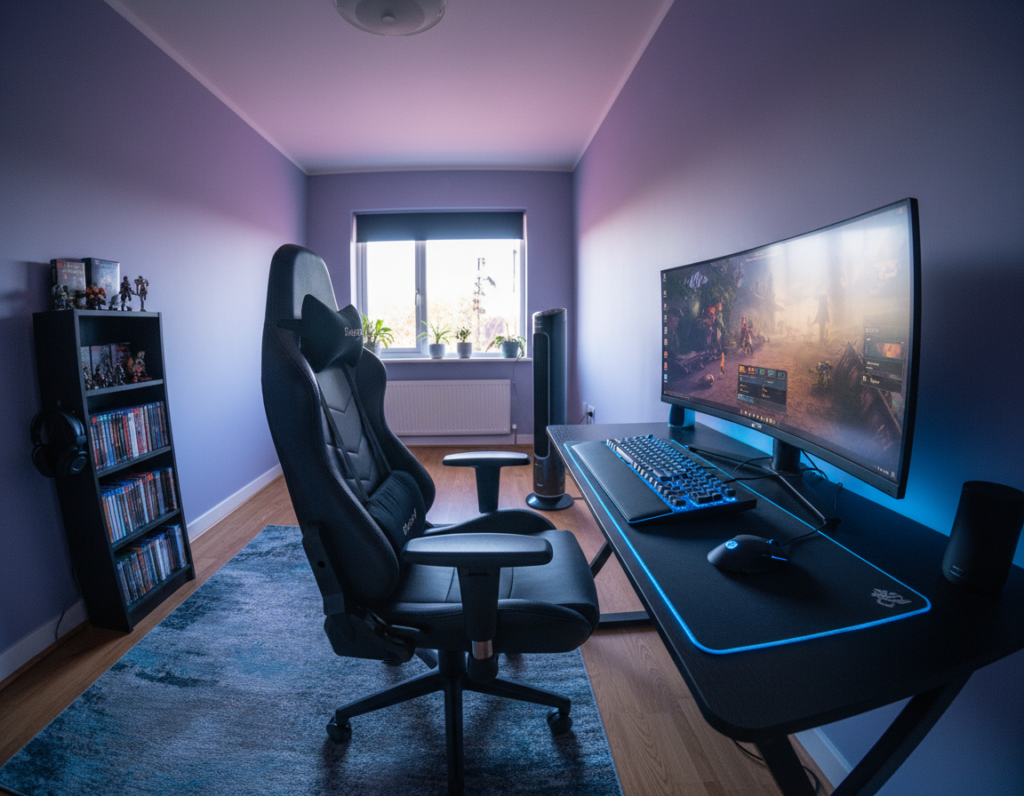
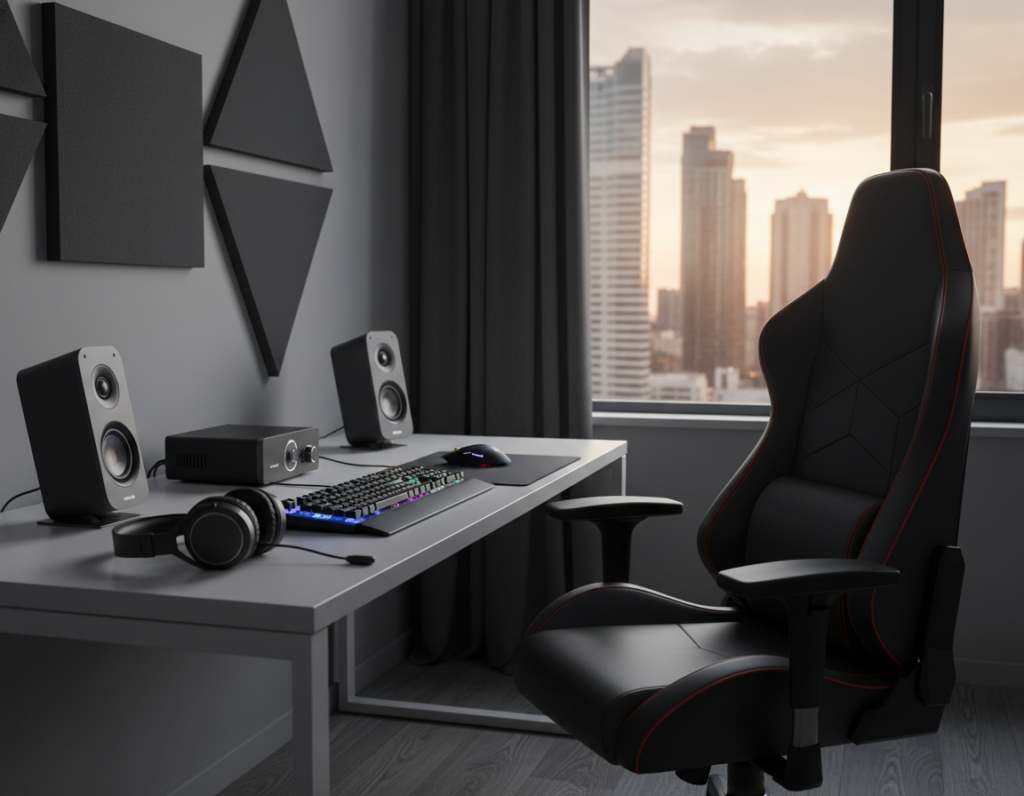
This guide shows how to turn a cramped workspace into a productive station that supports long hours of focused work. It is written for professionals who use a laptop and two monitors to boost output and manage multiple tasks.
Proper planning makes all the difference. Positioning screens at the right height and angle reduces strain and keeps the area tidy. Simple changes deliver big gains in comfort and efficiency.
The advice that follows includes easy-to-follow tips on layout, cable management, and how to use standing options for better posture. Readers will learn practical steps to fit two monitors into limited desks and make the most of every inch.
Whether they code, trade, or manage projects, users find that a well-planned arrangement makes work smoother and more comfortable. This short guide sets the stage for actionable strategies in the next sections.
Understanding the Benefits of a Dual Monitor Setup
Expanding screen area transforms how professionals juggle data, chat, and creative tools during a busy workday.
Increasing visible workspace reduces tab switching and speeds decision-making. Traders, programmers, and digital artists often find a single screen limiting for complex tasks.
A proper monitor setup improves overall workflow and boosts productivity. With documentation on one screen and active work on the other, teams in the office keep focus and respond faster to messages.
- More screen real estate: Cut down context switching and keep tools visible.
- Less eye strain: Spread content across two screens to avoid squinting and constant zooming.
- Better posture and standing options: An organized layout supports healthy position changes during the day.
This guide shows how a well-planned arrangement keeps your desk functional all day and prevents common single-screen pitfalls. Adopting this approach is a proven way to improve daily output for high-performance professionals.
Essential Hardware for a Dual Monitor Setup Small Desk
A thoughtful hardware list helps anyone turn a narrow work area into a reliable coding station. With a 32–40 inch wide desk and about 20.5 inches depth, two 24-inch screens fit comfortably while leaving room for a keyboard and mouse.
Coding-Friendly Monitors
Consistency matters. Choose displays with the same size and resolution so text stays sharp and windows line up across the screen. IPS panels give accurate colors and wider viewing angles, which helps during long review sessions.
Docking Stations
A quality docking station centralizes power, USB, HDMI or DisplayPort, and Ethernet. This reduces cable clutter and makes a laptop programmer’s transition smooth. It also protects against a page blocked error caused by flaky connections.
- Stability: Ensure your standing or standard desk can hold the weight of two screens and a dock.
- Cables: Use HDMI or DisplayPort to avoid random disconnects and the “page blocked extension” issue.
- Troubleshooting: If a page blocked message appears, try disabling extensions and check cable seating.
For tips on fitting two screens to a narrow surface, see this compact workspace guide.
Optimizing Your Workspace with Monitor Arms
Adding adjustable arms transforms a crowded work area into a flexible, ergonomic command center. These mounts lift screens off the desk and create usable surface area for tools and notes.
Well-chosen arms let users set each screen to the proper eye level. This reduces neck and back strain and improves long-term comfort during standing or seated work.
Benefits of Adjustable Mounts
- They free up surface space by suspending monitors and accessories over the desk.
- Height and tilt control cut down neck strain and keep screens at eye level.
- 360-degree rotation offers flexibility to flip from landscape to portrait for coding or documents.
- Secure clamping prevents wobble; if a page blocked extension or blocked extension appears, check that the arm is tightly mounted to avoid screen movement.
Choosing a sturdy arm creates an organized workspace that supports posture and productivity. For a reliable dual monitor arrangement, prioritize build quality and smooth height adjustment.
Creative Screen Configurations for Limited Areas
Clever screen arrangements let users reclaim limited surface area while keeping every tool within reach. These layouts help people balance visible windows, input devices, and posture without needing a larger surface.
Vertical Screen Orientation
Vertical placement is ideal when long documents or code need to be visible. It saves room on the desk and makes reading long lines easier.
Tip: Use a height-adjustable arm so the top of each monitor sits at eye level to reduce neck strain.
V-Shaped Layouts
A V-shaped arrangement angles both displays toward the user. This keeps windows within the natural field of view and improves workflow.
Position the keyboard and laptop so hands move smoothly between devices. Proper alignment reduces time wasted reaching for tools.
Stacked Monitor Arrangements
Stacking screens makes sense when horizontal space is scarce. It uses vertical room while keeping screen real estate high.
- Stack when desks are narrow but wall height is free.
- Check software detection; disable extensions if a page blocked extension interferes.
- Test comfort for eye tracking and reduce strain by adjusting tilt.
Managing Desk Surface Space Effectively
Smart surface upgrades turn a constrained workspace into a stable platform for two displays and daily tools. This helps keep the office area tidy and supports longer periods of focused work.
A custom-cut MDF board placed on top of an existing desk is a quick DIY fix to add usable surface. It creates room for both monitors and leaves space for a keyboard, mouse, and notes.
A standing table option also expands available area. Raising the main surface frees storage underneath for files and office tools, while keeping the top uncluttered.
- Clear clutter: Remove unneeded items to avoid interference with cables or a page blocked extension.
- Test stability: Verify the board and clamps hold weight before regular use.
- Prioritize essentials: Keep frequently used tools near the keyboard for smooth work flow.
Keeping the surface organized prevents a blocked extension and supports a reliable dual monitor arrangement. A stable, roomy top makes daily tasks easier and more professional.
Keyboard and Mouse Placement Strategies
Placing input devices thoughtfully keeps hands relaxed and reduces reach fatigue during long work sessions. Proper placement supports posture and keeps the eyes aligned with each screen in a dual monitor arrangement.
Wireless Bluetooth keyboards and mice free up surface area by removing cables and make it easier to position devices on the side that feels natural. This clears room for monitors, accessories, and an arm that holds a laptop or second screen.
A clamp-on keyboard tray can add usable space under the front edge of the desk and bring the keyboard closer to the chair. That reduces forward reach and helps prevent neck and eye strain.
- Keep the keyboard centered with the primary screen to maintain neutral wrist alignment.
- Place the mouse on the dominant side within easy reach; consider a slim pad to save space.
- Test wireless links if a page blocked extension or blocked extension appears—interference can affect input devices.
- Organize cables and accessories so movement is unobstructed and workflow stays smooth.
Simple adjustments to keyboard and mouse placement dramatically improve comfort and productivity. With the right layout, people can work longer with less strain and better focus.
Mastering Cable Management for a Clean Look
Tidy cable runs make a workspace feel larger and more professional. Good routing keeps power bricks and cords off the floor and makes everyday tasks faster.
Start with a plan. Map each screen, keyboard, and accessory to a path. Label or color-code lines so changes are not guesswork.
Cable Management Trays
A cable management tray can be screwed or clamped to the back of the desk to hold extension cables and auxiliary wires off the floor. It keeps power bricks tidy and prevents a blocked extension from being hidden under clutter.
Organizer Kits
Organizer kits include Velcro straps, zip ties, and sleeves to shorten and group cables. These tools make it easy to color-code and secure runs under desks or behind arms.
- Keep essentials reachable: Tuck power strips into a tray to free surface space.
- Protect ports: Route cables so they do not strain laptop or monitor ports and cause a page blocked extension or blocked extension issue.
- Invest wisely: Quality clips and ties simplify maintenance and support a clean dual monitor setup.
Selecting the Right Monitor Size for Your Desk
“Picking the right screen size starts with measuring the work surface and imagining how windows will sit side by side.”
Measure first. PC screens range from about 15 inches to beyond 26 inches, so choose a size that fits the available surface. A too-large display can dominate the workspace and force awkward reach or poor posture.
Most users find 24-inch screens give the best balance between usable viewing area and footprint. Two 24-inch units usually work well on common desks while keeping room for a keyboard and mouse.
If a user has a 55-inch desk, two 21-inch displays fit comfortably with extra space for notes and accessories. They should check clamp and arm flexibility so height and tilt allow a natural sightline.
“Choose screens that match the tasks you do most often; that choice defines comfort and efficiency.”
Before buying, measure the usable width and depth, test arm reach, and consider whether screen height can be adjusted. This careful approach creates a balanced, efficient setup that supports long work sessions.
Ergonomic Precautions for Long Work Sessions
Protecting neck and back health starts with small, repeatable adjustments at your work area. Good habits cut fatigue and keep focus for longer periods.
Maintaining Proper Posture
Set up a routine. Sit with feet flat and hips level. Keep the primary monitor at eye level to avoid tilting the head.
Ensure the desk sits on an even floor. Use wedges under legs if the surface wobbles. A stable top prevents sudden shifts that cause strain.
- Adjust screen height: Place the monitor so the top third of the display aligns with the eye level.
- Alternate positions: A standing option lets users switch between sitting and standing to improve circulation.
- Keyboard and reach: Move the keyboard and mouse close enough to keep elbows near the body and wrists neutral.
- Check arms and tilt: Use adjustable arms to fine-tune angle and reduce neck and back tension.
Simple, repeated checks of posture and comfort reduce long-term strain. For practical ergonomic products and guidance, see this ergonomic office desk setup.
Integrating Lighting Solutions for Better Focus
A focused light source changes how a person perceives contrast and reduces visual fatigue. Proper lighting helps maintain steady concentration during long stretches of work.
Use a monitor light bar like the BenQ ScreenBar Halo 2 to brighten the surface without reflecting on screens. Its 18-degree anti-glare angle and 500 lx coverage light a 33.5 x 19.7-inch area evenly.
If the desk is under 47 inches, one Halo 2 usually suffices. For desks 55 inches or wider, two units deliver uniform brightness across the whole workspace.
Keep a V-shaped screen layout at an angle no smaller than 160 degrees to reduce hotspots and glare. Good illumination supports posture and keeps the eyes from straining toward bright or dark zones.
- Comfort: Even light reduces the need to lean forward when reading on a laptop or a secondary screen.
- Workflow: Consistent brightness prevents frequent adjustment and keeps tasks moving.
- Practical tip: Position the bar so cables and extension power strips stay tidy and out of sight.
Conclusion
A clear plan for organization, ergonomics, and light lets professionals work longer with less strain.
This guide offered practical tips to turn a cramped corner into a productive station. By applying these suggestions, readers can build a reliable monitor setup that improves workflow and protects the eye.
Ergonomics, good lighting, and tidy cables matter as much as the screens themselves. If space still limits comfort, consider a standing desk or adding a standing option to gain room and boost productivity.
Use these tips to create a durable, professional-grade arrangement. A thoughtful dual monitor setup keeps focus sharp and supports better work for years to come.