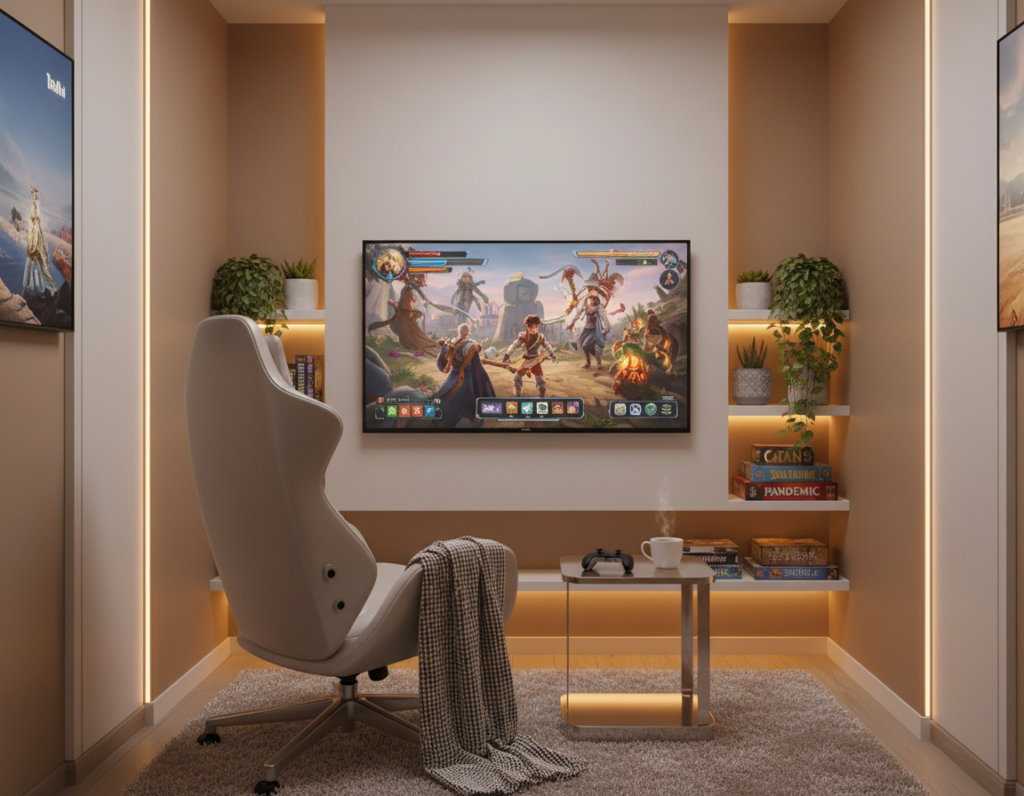
The American Academy of Ophthalmology notes that digital devices do not cause permanent vision damage, but many people still report discomfort during long sessions. Short breaks and smart ambient light can make a big difference in overall experience.
Many gamers feel a dull ache behind their eyes after two hours of play. This often stems from an imbalanced home setup where a bright screen contrasts sharply with a dark space.
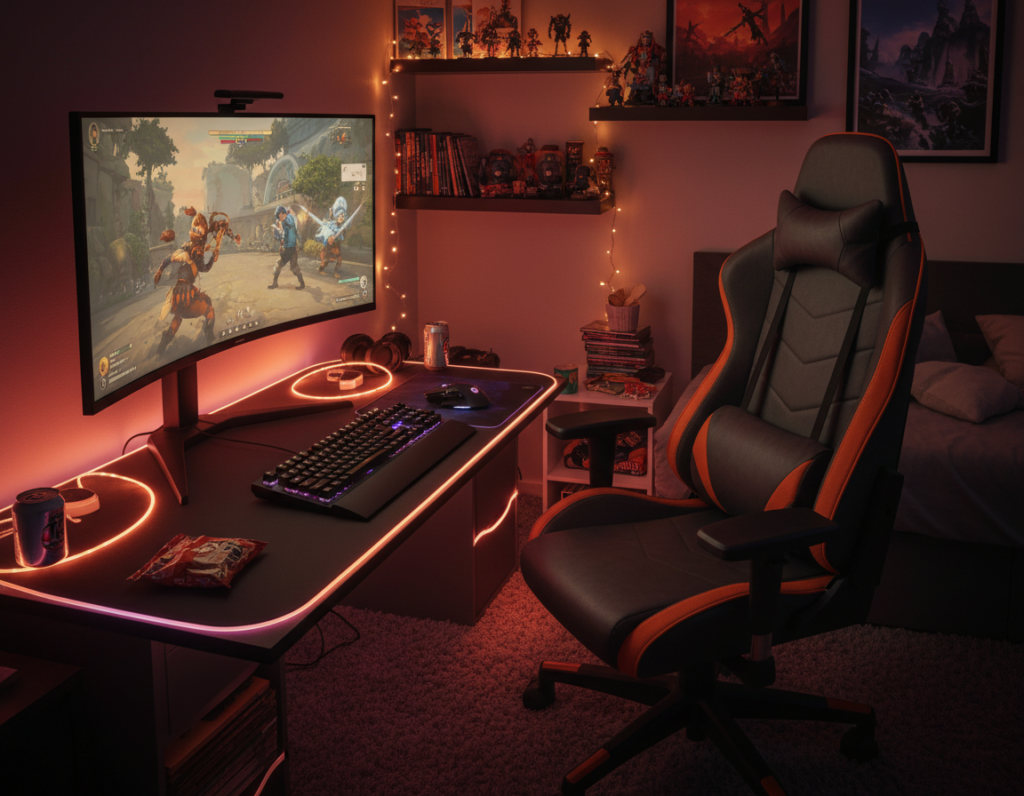
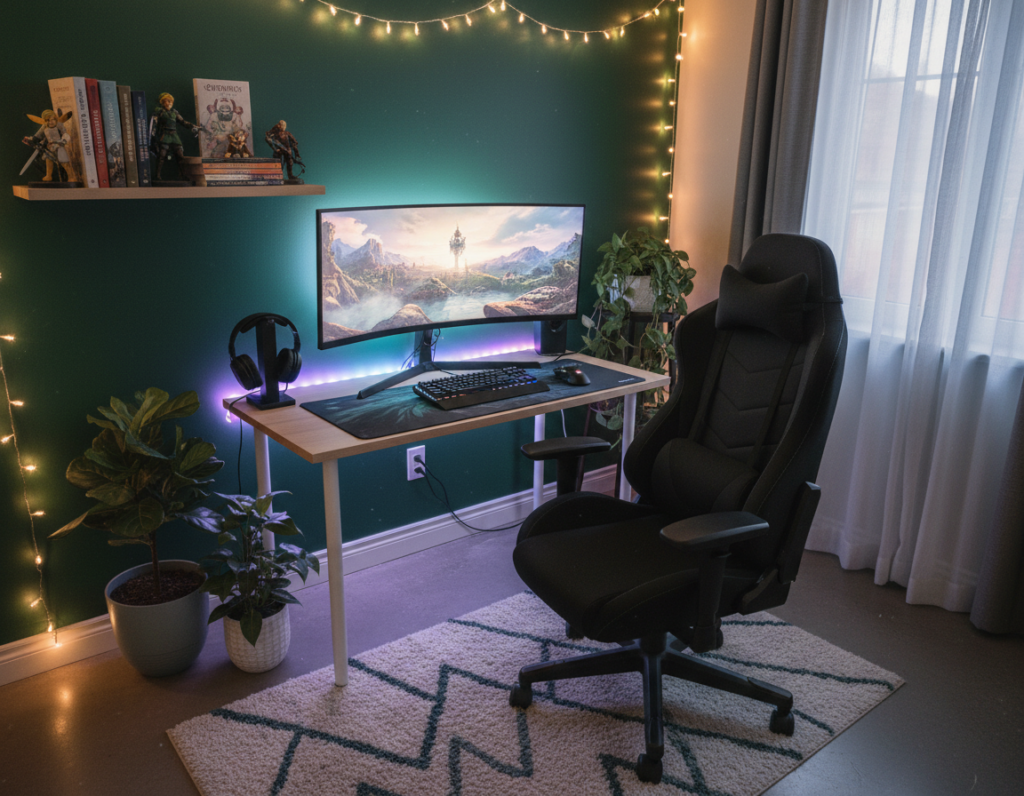
By adding soft, indirect lighting and simple bias lighting behind the monitor, users can reduce contrast and lessen tension headaches and fatigue. RGB and LED strips work as functional accents that also help maintain steady brightness and pleasing colors.
A thoughtful desk arrangement pairs the screen with ambient sources so the eyes adjust more easily. Building a high-performance setup begins with understanding how light and color interact in a room.
Understanding the Physiology of Visual Fatigue
Sustained focus on a bright screen commonly leads to transient visual fatigue and dryness. The sensations users report have clear physiological roots. Short-term changes in blinking and pupil size drive many symptoms.
The Mechanics of Digital Eye Strain
Digital eye strain—also called Computer Vision Syndrome—happens when the ciliary muscles tire from holding focus on a single screen for long periods.
- The American Academy of Ophthalmology notes people blink about 5–7 times per minute while gaming or watching video, versus 15 normally.
- Less blinking leads to dry eyes, blurred vision, and soreness in a dark environment.
- Managing monitor contrast and overall brightness reduces this static load on the internal muscles.
The Impact of Pupillary Reflex
When the pupil dilates in a dark room, a bright screen forces repeated constriction. That constant adjustment strains the iris and related muscles.
“This tug-of-war between a bright screen and a dark environment intensifies fatigue and can make sessions feel much longer.”
Simple steps, such as adding subtle bias and balancing color and brightness, lessen the effects and help maintain steady vision.
Optimizing Gaming Room Lighting for Eye Comfort
A layout-first approach lets the monitor and peripheral sources work together without harsh contrast. Placing the desk so the screen faces a softly lit backdrop reduces glare and helps the eyes adjust between bright and dim zones.
Most users benefit from ambient glow that fills the space rather than direct beams aimed at the screen. RGB strips or warm LED bulbs behind the monitor and along shelves create a steady field of light that eases focus and lowers contrast.
“Plan lighting zones so the desk, background, and monitor share the same visual plane.”
A professional setup mixes task lights with bias sources. This helps spot peripherals, cuts screen reflections, and preserves mood during long sessions. Small adjustments to color and placement improve the experience without adding distraction.
- Prioritize layout: align the desk and monitor with ambient sources.
- Use diffused LEDs or RGB strips to soften contrast.
- Zone lights so bright fixtures never sit behind the screen.
The Role of Bias Lighting in Reducing Contrast
A faint glow on the wall behind the monitor reduces harsh contrast and helps the visual system relax. Bias lighting involves placing a soft source that illuminates the background, not the screen, so pupils remain steadier during long sessions.
Placement Strategies for Diffused Glow
Position strips so light bounces off the wall behind the display. This creates a uniform background color that frames the screen and lowers abrupt contrast.
Avoid direct beams; LED strips should not shine into the eyes or hit the monitor surface. Keep brightness moderate to prevent glare and extra cognitive load.
- Mount the strip along the rear top edge of the monitor to spread light onto the wall.
- Use neutral or slightly warm color tones—RGB can work but avoid high-saturation hues at maximum brightness.
- Test placement at typical screen brightness and tweak distance until the background looks even.
“Proper bias reduces strain by softening the visual gap between screen and background.”
Selecting the Right Color Temperature and Brightness
Small shifts in color temperature and brightness yield big gains in sustained focus and reduced glare.
Select a color temperature between 2700K and 3500K. This range cuts high-energy blue emissions that increase retinal stress and helps maintain relaxed vision during long sessions.
The GTG-G55 desk uses a tempered glass surface to diffuse light across the workspace. That diffusion acts like a wide-scale bias light and keeps brightness consistent across the desk and screen plane.
Keep ambient brightness at about 20–30% of the monitor’s luminance. This ratio reduces contrast, steadies pupils, and limits fatigue without dimming task visibility.
- Use static or slow-breathing RGB tones behind the monitor to avoid peripheral distraction.
- Mount warm LED strips so they wash the wall with indirect glow rather than shine into the eyes.
- Fine-tune color and intensity to match the desk and overall design of the setup.
“Careful choice of color and intensity turns a desk into a professional-grade space that protects vision.”
Implementing Task Lighting for Desk Visibility
Task lighting narrows the contrast gap between your monitor and the desk while keeping peripherals visible. This approach keeps the screen steady and the workspace usable during long sessions.
Benefits of Monitor Light Bars
Monitor light bars shine downward across the desk. They illuminate keyboards and notes without casting reflections on the screen.
These products direct light where it is needed. That reduces glare and helps users maintain focus.
Choosing LED Desk Lamps
LED desk lamps add flexible task light and reveal small peripherals. Choose a model with adjustable brightness and color so it balances with bias lighting and RGB strips.
- Pick dimmable designs to match screen brightness.
- Place lamps to light the desk and background, not the screen surface.
- Follow the 20-20-20 rule: every 20 minutes look 20 feet away for 20 seconds to ease eye strain.
“A compact, adjustable task lamp protects vision while keeping the space tidy and functional.”
Ergonomic Foundations Beyond Lighting
Proper posture and screen alignment prevent neck tension that often mimics persistent headaches. Small changes to how a person sits and where the monitor sits reduce muscular load and improve focus.
The OSHA eTools guideline recommends placing the top line of text at or slightly below eye level. This helps keep the neck neutral and lowers the chance of forward tilt that causes tension.
Use a quality monitor stand or adjustable arm to fine-tune height and tilt. A secure arm also eliminates wobble that makes it hard for the eyes to track moving content on the screen.
Stability matters: a solid desk and tidy cable management stop vibration and help sustain steady focus during long sessions. Integrating modest RGB and LED accents into the desk design enhances mood without adding glare or distraction.
- Position the monitor so the top text line aligns with the sightline.
- Choose a stable desk and a reliable monitor arm to avoid wobble.
- Balance bias sources and task lights so the screen contrast stays gentle.
“By aligning the body and the screen, users reduce overall strain and can sustain better performance.”
Learn more about proper placement and adjustments in this ergonomic monitor setup guide.
Managing Movement and Posture During Long Sessions
Integrating timed standing and short motions preserves circulation and keeps focus steady during extended play. The Cornell 20-8-2 rule offers a clear rhythm: sit 20 minutes, stand 8 minutes, then move 2 minutes every 30 minutes.
Micro-movements are simple actions that break static load. Calf raises, shoulder rolls, and weight shifts reduce muscle tightness and lower overall strain.
The Importance of Micro-Movements
The WHO 2020 guidelines emphasize cutting sedentary time to protect health during long sessions. Short activity bursts maintain circulation and alertness.
- Use a sit-stand desk to change posture without interrupting work.
- Set a timer to follow the 20-8-2 pattern and avoid long static periods.
- Perform subtle moves—ankle rolls, neck tilts, or brief walks—to stay limber.
“Regular movement reduces both muscular fatigue and visual strain, even when bias light and RGB accents are in use.”
Pro tip: Keep monitor height and soft light steady as you switch positions. That consistency prevents glare and the need to re-adjust your setup mid-session.
Avoiding Common Setup Pitfalls
Minor setup mistakes often cause more strain than a single bright screen. Clear, practical fixes make the environment steadier and less distracting.
The Visual Parallax Error
Keep desk height aligned so shoulders stay relaxed and elbows rest at about 90 degrees, per BIFMA G1-2013 guidance. If a standing desk sits too high, users tilt their head and track the desk surface instead of the display.
This mismatch forces the eyes into awkward angles and raises neck strain.
The RGB Glare Trap
Avoid placing bright strips or visible LEDs where they reflect on the screen. Reflections create veiling glare that reduces contrast and worsens visual strain.
- Use diffused bias lighting behind the monitor to wash the wall evenly.
- Confirm RGB or LED strips are hidden from direct view or set to low brightness.
- Test placement with typical screen brightness and adjust until reflections vanish.
The Standing Desk Myth
Standing is not a substitute for movement. The WHO recommends regular activity to offset sedentary effects.
“Alternate posture and include brief walks or micro-movements to preserve circulation and focus.”
Smart setup pairs stable monitor placement, tidy cable routing, and quality products so the desk remains a clean space that supports long-term focus and reduces contrast-related fatigue.
Conclusion
Using a layered approach of subtle background glow and targeted task light makes long screen sessions easier to sustain. Bias lighting and proper monitor placement create a balanced field that reduces contrast and lowers visual strain.
They should follow the 20-20-20 rule and add short movement breaks to protect posture and vision. A tidy setup with the right lights and furniture supports longer use without worsening fatigue.
View the setup as an ergonomic system rather than decoration. Small, intentional changes improve comfort and the overall experience while helping prevent common headaches tied to extended use.