This guide shows how to build an effective workstation glow without harsh overhead fixtures. It focuses on practical steps—from monitor bias lighting and LED strips to power and cable management—that help reduce eye strain and glare while improving contrast and comfort.
Readers will learn how to use RGB backlighting, neutral white task light, and diffused wall wash effects to create a balanced setup that meets safety and OSHA glare guidelines. The guide covers product choices, smart systems like Nanoleaf, Philips Hue, and Govee, and tips for avoiding hotspots and distracting reflections.
Whether they stream, edit, or play for hours, users get a clear path to a neat, stable installation with proper power planning and tidy cable routes. For a practical primer and product pointers, see this desk lighting guide.
The Importance of Strategic Gaming Desk Lighting Ideas
Good placement of light sources turns a cluttered play area into a calm, focused environment that supports long sessions. A considered approach reduces harsh contrast between a bright screen and a dark room, which helps prevent eye strain and keeps concentration sharp.
Why this matters:
- Strategic lighting makes the space more comfortable and camera-friendly for streams or calls.
- The Canadian Centre for Occupational Health and Safety notes that proper light balance reduces visual fatigue by lowering contrast.
- Planning in zones — task, ambient, and accent — avoids glare and confusing color clashes.
Choosing the right brightness and RGB palette lets users switch from work mode during the day to an immersive game mood at night. This approach turns a collection of gadgets into a cohesive, stylish setup that protects the eyes and boosts comfort for long hours.
“Proper lighting helps reduce the high contrast between a bright monitor and a dark room.”
Planning Your Layout for Maximum Impact
Mapping the room before you add any lights ensures each zone serves a purpose and looks polished. A short plan prevents clutter and makes future changes easier.
Defining Lighting Zones
They should divide the space into task, ambient, and accent zones. Task light goes near the monitor and work area.
Ambient sources wash the wall and reduce contrast with the screen. Accent RGB strips add depth and mood.
- Place task sources to avoid reflections and hotspots on the monitor.
- Use L-shaped surfaces as natural boundaries for separate zones.
- Route cables with a simple guide so products stay tidy and adjustable.
Surface Considerations for Light Diffusion
Surface material matters. Tempered glass with an edge-lit micro-diffuser, like the GTG-L60 L-Shaped Glass LED model, spreads led output evenly across the surface.
Why this helps: Even diffusion reduces bright spots and makes rgb effects look more professional across the room.
Implementing Bias Lighting for Visual Comfort
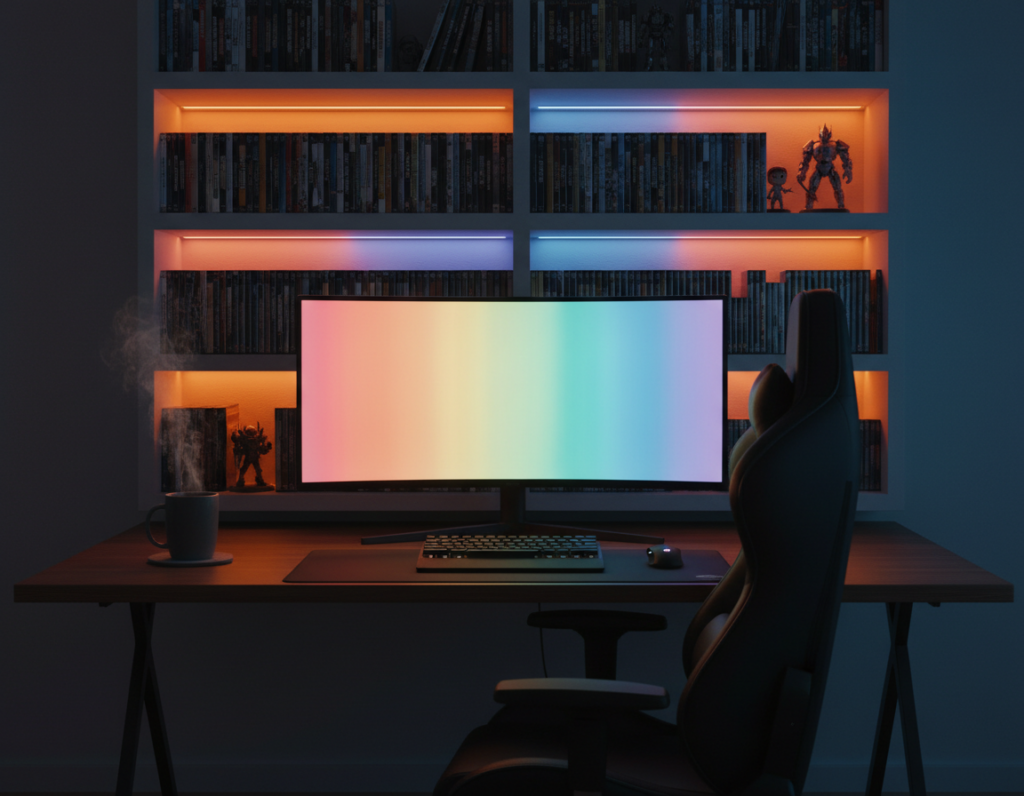
A soft halo behind the display cuts harsh contrast and makes long sessions far easier on the eyes. Bias lighting is a low-effort upgrade that delivers immediate relief from high screen brightness in dark rooms.
Reducing Screen Contrast
Place a quality LED strip 5–10 cm behind the monitor to create a stable, neutral glow that balances monitor brightness against the wall. This reduces the contrast that forces pupils to constantly adjust.
- Bias lighting behind the screen forms a soft halo that reduces eye strain and glare.
- Following OSHA guidelines for computer workstations helps prevent visual fatigue during extended use.
- A neutral rgb or white strip placed correctly prevents reflections on glass surfaces and improves overall comfort.
Practical tip: keep the glow subtle—too bright defeats the purpose and causes new glare points.
“Proper light balance at the workstation reduces visual fatigue and improves comfort.”
For deeper setup options and product choices, see this bias lighting and monitor guides.
Utilizing Monitor Light Bars for Task Focus
Monitor light bars offer a precision approach to front illumination. They brighten the keyboard and work surface while avoiding reflections on the screen. This keeps contrast stable and reduces eye strain during long sessions.
The BenQ ScreenBar Halo 2 is a standout product for this role. It uses a 24° adjustable lamp head and an 8-section reflector to aim light where it helps most. The front-facing beam is engineered to be steady and directional, which supports focus without adding glare.
- Focused front light: Clears keys and notes so work and play remain precise.
- Rear bias boost: The Halo 2’s backlight covers 423% more area, balancing contrast between the monitor and wall.
- Ergonomic extension: Acts as a healthy task-light alternative to overhead fixtures for long sessions.
Practical tip: Mount the bar so the lamp head points slightly downward. This directs light to the desk and spares the screen from reflections.
“Directional monitor lighting protects the eyes and preserves on-screen contrast.”
For a recommended accessory list and quick setup tips, see this monitor light bar guide.
Enhancing Atmosphere with Ambient LED Strips
Ambient LED strips can turn plain walls into mood-rich backdrops that change a room’s entire feel. This section shows practical wall techniques, color choices, and how to sync strips with gameplay for a cohesive setup.
Wall Lighting Techniques
Hide strips behind the desk or crown molding to produce a soft, indirect glow. This avoids hotspots and keeps the screen contrast stable.
Use hex panels or low-profile rails to add texture without crowding the space. Aim the strips toward a matte surface to maximize diffusion and reduce reflections.
Color Palette Selection
Pick palettes that match use: cool whites and blues for daytime focus, warm magentas and ambers for relaxed evenings.
Theme names like “Cyberpunk Neon” or “Vaporwave Sunset” help keep color choices consistent across devices.
Syncing with Gameplay
Link RGB strips to audio or on-screen triggers for reactive effects that follow action. This creates an immersive environment that feels responsive and alive.
- Layer ambient strips with bias and task sources for balanced brightness.
- Keep control hubs accessible and label power lines for easy changes.
“Ambient strips add depth and personality while protecting on-screen contrast.”
Managing Cables and Power for a Clean Look
Tidy cabling and smart power choices keep the setup looking professional and make upgrades painless.
Effective cable management is the secret to a clean gaming setup. Users should secure RGB controllers and LED strips to the underside of the desk and leave a 5–10 cm service loop for standing surfaces.
Use cable trays, sleeves, and labeled ties to route power boards and extension cords. This keeps power accessible and simplifies adding or replacing strips and other components.
- Safety first: Choose furniture that meets the UL 962 standard so mechanical and electrical parts are certified for long-term use.
- Protect components: Add a surge protector to guard sensitive RGB modules from spikes.
- Longevity: A dust-free surface improves light quality and reduces maintenance.
By keeping cables organized, the colorful elements remain the visual focus instead of a tangled mess. This approach preserves both appearance and function for any gaming area.
“Desks tested to UL 962 ensure that mechanical and electrical components are safe for use in height-adjustable furniture.”
Avoiding Common Installation Mistakes
A few simple checks before mounting lights will prevent most problems and save time on fixes. Proper prep and testing protect adhesives, electronics, and eyesight during long play or work sessions.
Surface Preparation
Clean first: wipe mounting surfaces with isopropyl alcohol and a lint-free cloth. A greasy or dusty area causes LED strips to peel.
Test power limits: avoid overloading RGB controllers by checking the total wattage before you connect multiple strips. Too many extensions or strips can cause dimming or flicker.
Camera and flicker check: record the setup at 30 and 60 fps. PWM can show up on camera as strobe effects that are invisible to the naked eye.
- Use a surge protector to guard sensitive rgb modules and power supplies.
- Keep lights out of direct sight lines to reduce glare and contrast that increase eye strain.
- Confirm build stability so the monitor and surface stay steady under load.
“By prioritizing prep and realistic product reviews, users keep their setups both safe and stylish.”
Conclusion
A strong, balanced plan helps transform a work area into a tuned, comfortable space that lasts. A pragmatic focus on function over flair yields a sustainable, low-glare setup that protects the eyes and performs well on camera.
Prioritize layered sources: bias behind the monitor, a directional monitor bar, and subtle RGB accents. Use quality LED products and aim for even diffusion so the light stays useful instead of distracting.
Final note: tidy cables, test power limits, and choose stable mounts. With modest planning, the right choices become an extension of the user’s passion and create a striking, reliable gaming desk that feels effortless during the longest sessions.